
Building iOS Widgets with Scriptable: Live Trains and Trams in Milan
I live near Bovisa in Milan and take the Trenord train to Cadorna every day. Instead of opening the official app and waiting for it to load, I pinned departures, delays and platforms to my home screen. Claude Code wrote the code. What I did was the design: deciding what belongs on a screen that only fits eight lines.
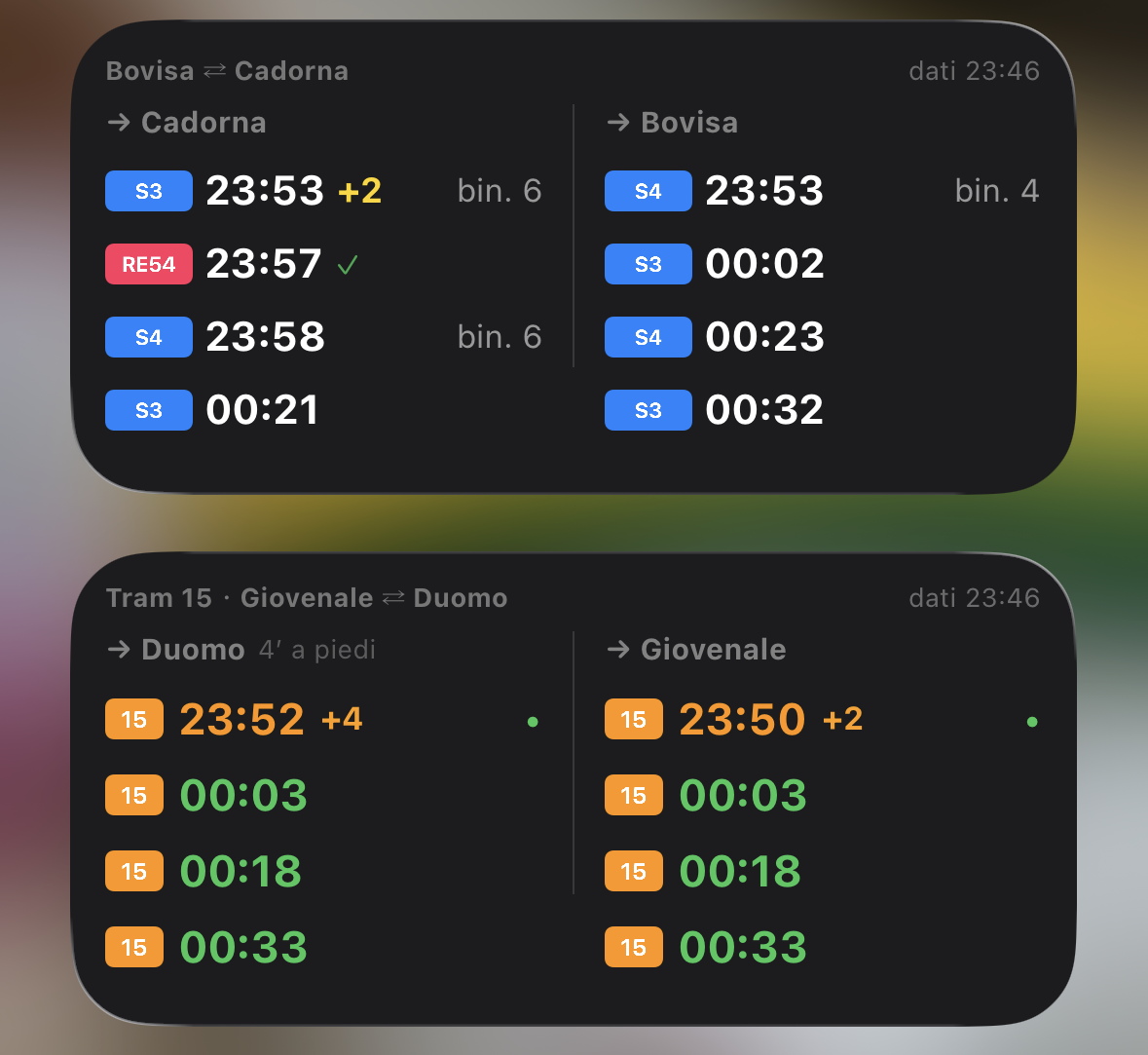
I live near Bovisa in Milan, and my main way of getting around is the Trenord train from Bovisa to Cadorna, then a metro or tram to wherever I’m going in the city. So I handed that need to Claude Code: find me a usable API, wire it up, and put the next departures, platforms and delays on my home screen. When something goes badly wrong on the line it also shows a warning row, which is my cue that I might not be taking the train at all today.
My girlfriend lives near Giovenale, so I built her the same thing for tram 15. Now she can see the next departures at a glance instead of watching the tram pull away in front of her.
Claude Code wrote almost all of the code, so this post isn’t really about how to write it. It’s about the part I actually decided: on a screen that fits eight lines, what goes on it and what doesn’t.
Why not the official apps
Both operators have apps. The problem is the rhythm.
- In the ten seconds before I leave, I want “next train, which platform, how late.” Not: open app, wait, pick station, pick date.
- Neither Trenord nor ATM has a home screen widget for my route specifically.
- The information I actually read is about eight lines long.
Scriptable fills exactly that gap: a single JavaScript file that runs inside an iOS widget, without needing Xcode, a developer account, or anything to ship.

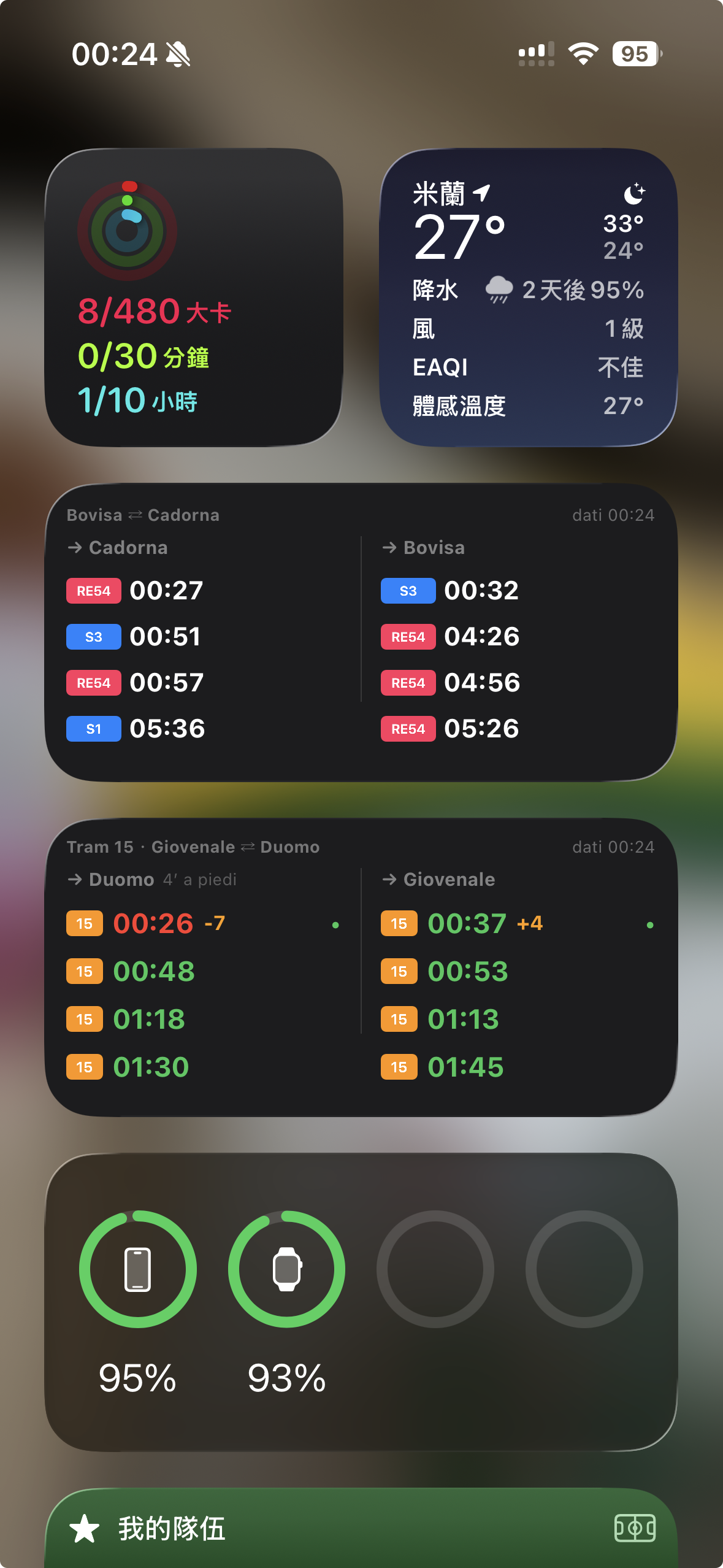
I keep mine in the Today View, the widget page one swipe left of the home screen, sitting between the weather, activity rings and battery widgets. In practice it refreshes as I swipe onto it, so there’s nothing to tap and nothing to wait for. One swipe on the way out the door tells me whether I need to run.
What a widget is made of
One script is one card. Two of mine run in Italy (train, tram) and two are gym occupancy widgets from back in Taiwan.
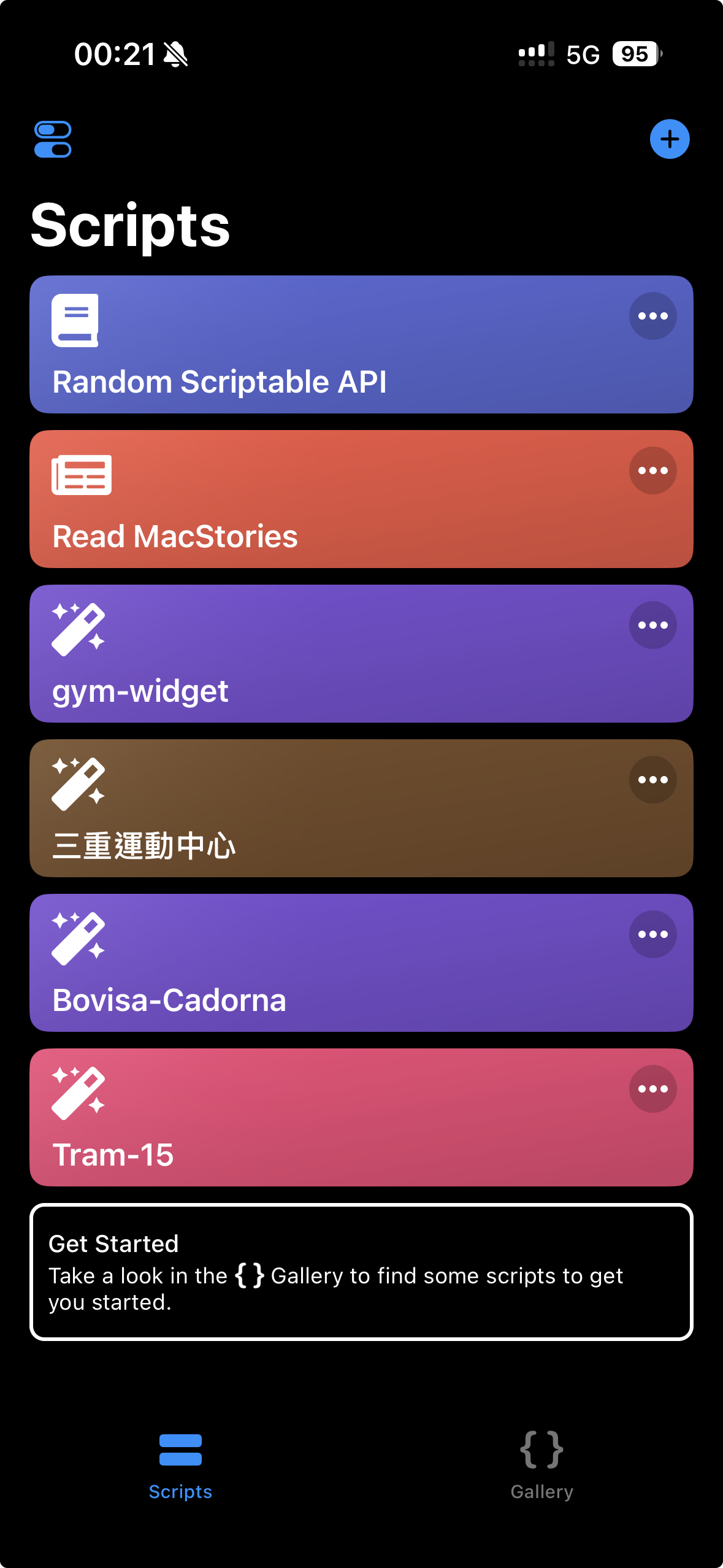
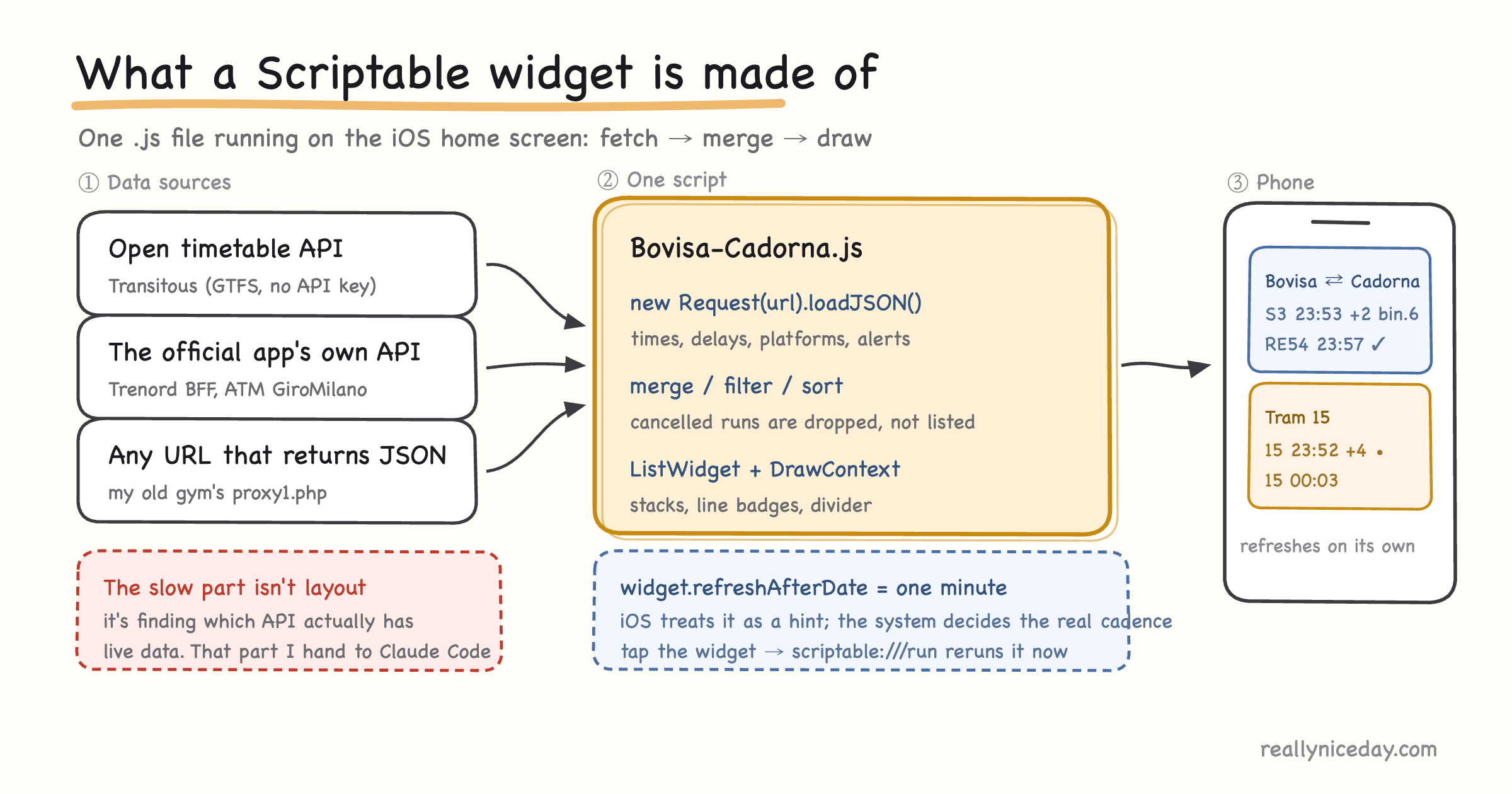
It’s always the same three moves: fetch, merge, draw. Layout is a stack model very close to SwiftUI, and anything stacks can’t draw (line badges, progress bars, dividers) gets painted with DrawContext and inserted back as an image.
Only one setting really changes how it feels: widget.refreshAfterDate is a hint. iOS decides the real cadence based on battery and usage. So I added one line that makes tapping the widget rerun it immediately:
widget.url = `scriptable:///run?scriptName=${encodeURIComponent(Script.name())}`The design: what earns a line
This is where the time actually went. The APIs return far more than eight lines’ worth of data, so every row is a trade.
The time shown is the time it will really arrive
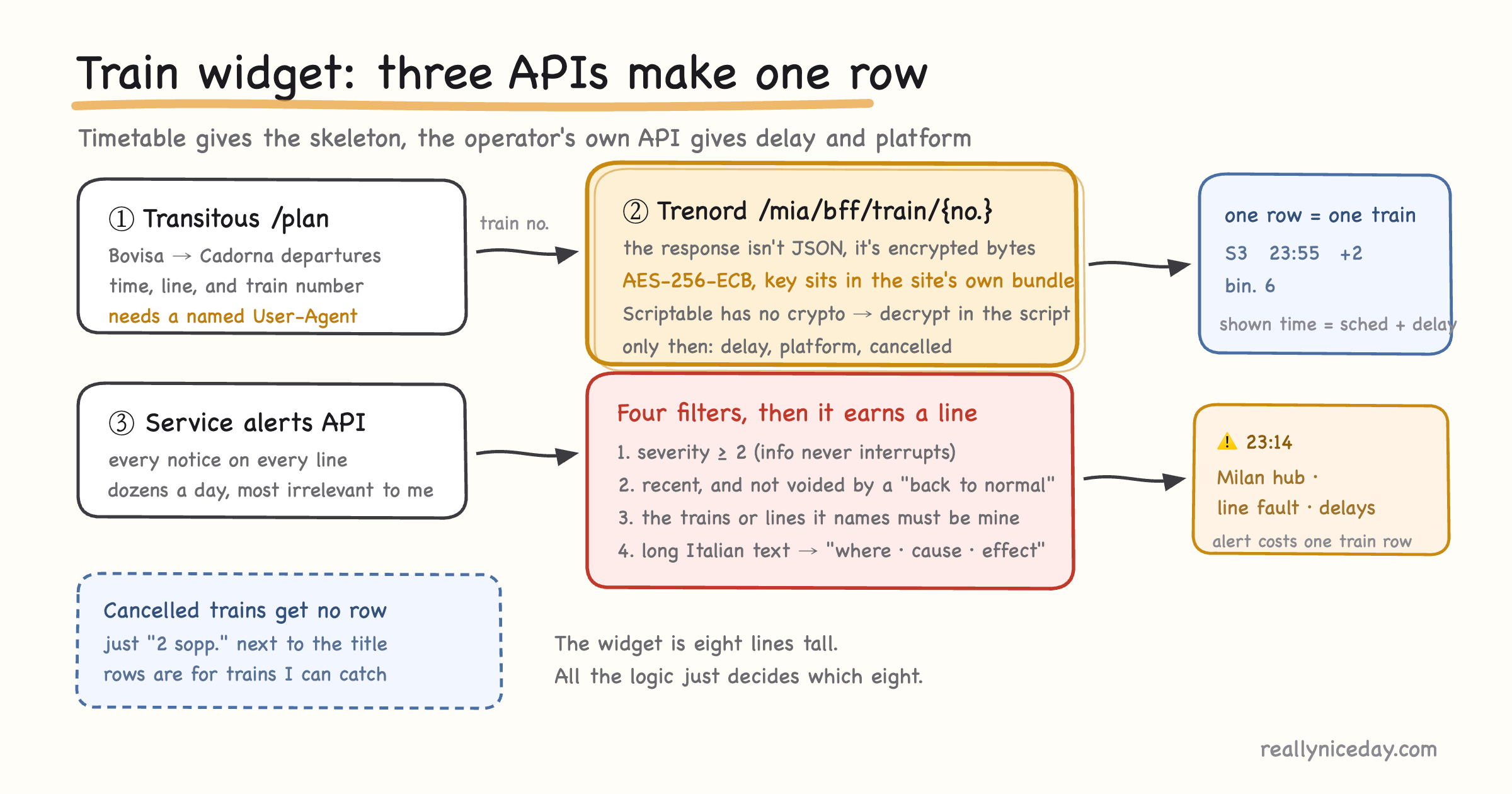
Scheduled 23:53, running 2 minutes late, and the widget says 23:55, with a small +2 beside it.
Before I leave the house I don’t care what the timetable says. I care when the train is actually going to be there. The delay number stays only so I can judge how much to trust the row. The arrival time is the headline.
Cancelled trains get no row
At first I listed cancelled runs too, in red, marked “CANC.” Two days of use made it obvious how silly that was: I can’t board that train, and it was eating one of four rows.
Now cancellations don’t get listed at all, just a small “2 sopp.” next to the header. All four rows go to trains I can actually catch.
Color means “can I still make it”
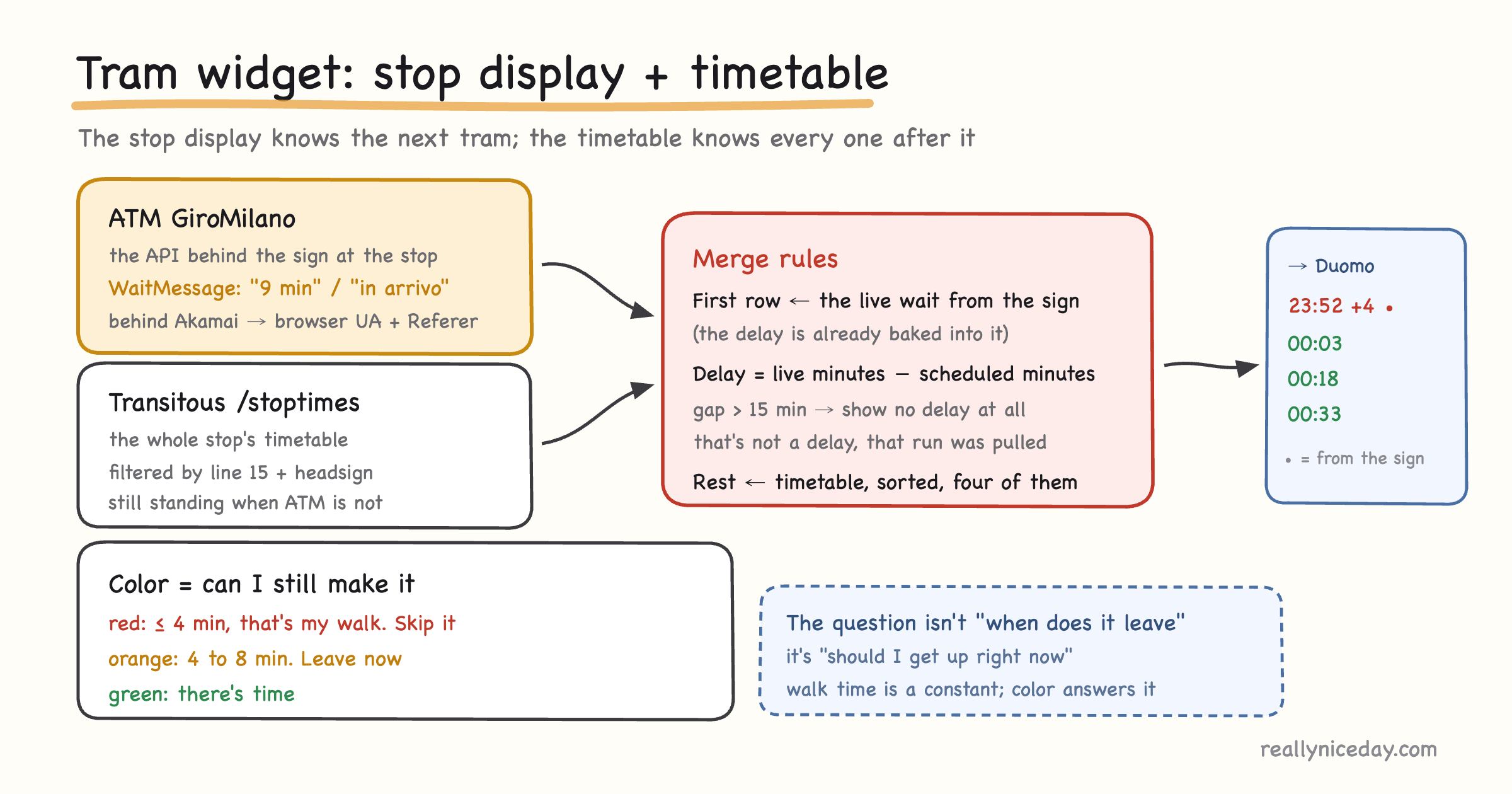
Departure times in the tram widget come in three colors, and the threshold is the 4 minute walk to the stop.
- Red: 4 minutes or less. Skip it.
- Orange: 4 to 8 minutes. Leave now.
- Green: there’s time.
function minsColor(mins, walk) {
  if (mins <= walk) return new Color("#FF3B30")
  if (mins <= walk + 4) return new Color("#FF9500")
  return new Color("#34C759")
}
The question was never “when does it leave.” It’s “should I get up right now.” Walk time is a constant in the config, and the color answers the question without me doing arithmetic.
An alert is either useful or silent
Trenord publishes dozens of notices a day. Showing all of them is the same as showing none, so they go through several filters and only the survivors get a row:
- Anything below “critical” severity never interrupts.
- Old ones don’t count, and if a later notice says service is back to normal, everything before it is void.
- If a notice names specific trains or lines, they have to overlap with the ones I’m currently showing. Only line-wide notices count unconditionally.
- Whatever survives gets compressed into one line:
⚠️ 23:14 Milan hub・line fault・delays.
The translation doesn’t call an API. Trenord’s notices are extremely formulaic (cause + effect + location), so a table of regular expressions handles it offline. No key to manage, nothing to fail.
When an alert is showing, one train row is dropped to make space. That’s deliberate: an alert means today isn’t normal, which makes it more important than the fourth departure.
Only things worth distinguishing get color
Line badges (S blue, RE red, R purple), the delay figure (yellow / orange / red), and a green dot for numbers that came from the live sign. Everything else is greyscale.
The platform number is deliberately faint, because I only need it in the moment I reach the platform. It shouldn’t compete with the departure time.
Where the data comes from (and where it usually snags)
I barely touched this part. I handed it to Claude Code: go read what requests the official site makes, what the parameters are, what comes back, and what blocks you. The summary:
- Timetables come from Transitous, a community-run open journey planner, no API key required. It rejects generic user agents, so you have to identify yourself with a real name.
- Train delays and platforms only exist in the endpoint Trenord’s own site uses, and the response isn’t JSON. The whole payload is encrypted, with the key sitting in the site’s frontend bundle. Scriptable has no
crypto, so the decryption is implemented inside the script. - Live tram waits come from the API behind the physical sign at the stop. It sits behind Akamai, so it needs a browser user agent and a referer to answer at all. It only knows the next tram, so the rest of the rows still come from the timetable.
- Merging the two has one trap: if the live wait exceeds the scheduled time by more than 15 minutes, that’s usually not a delay, it’s a run that got pulled and the sign is showing the one after. Displaying “+18” there would be a lie, so it displays nothing.
The snags are all the same species: the data exists, it’s just inside the interface the official app uses for itself, and it isn’t happy to hand it over. Digging through that is work an AI does quickly, and my job is verifying that the numbers are real.
Why iterating is cheap: iCloud
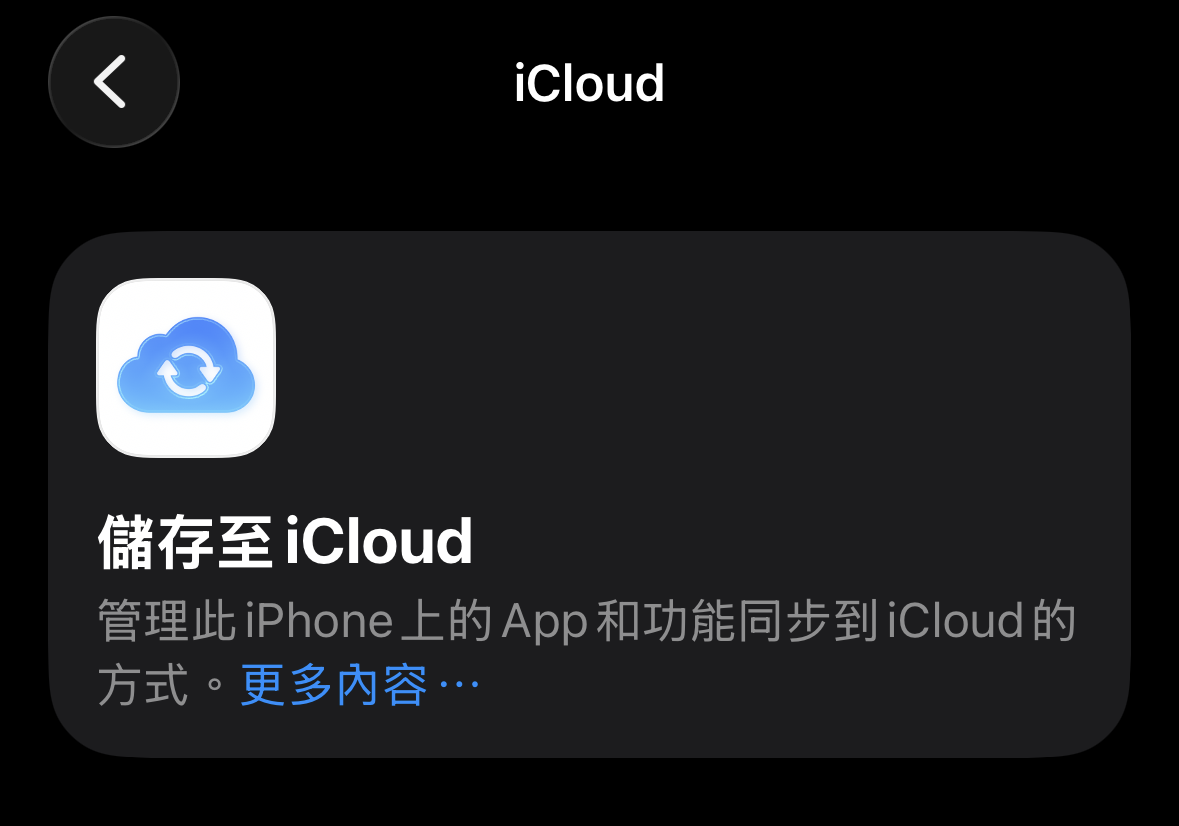
This matters more than it sounds. Scriptable stores its scripts in iCloud Drive, as long as you turn it on under Settings → iCloud → Saved to iCloud.
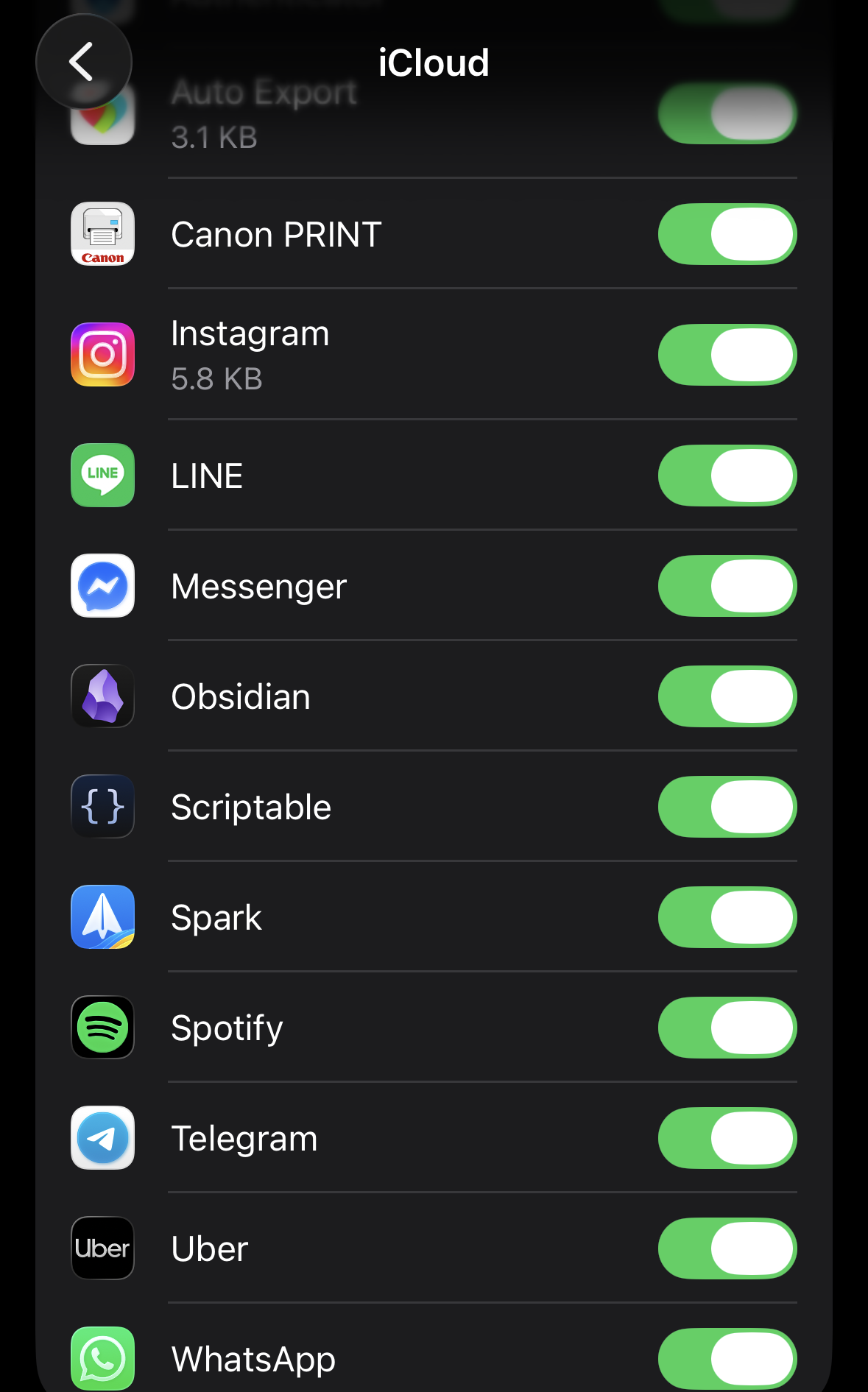
With that on, the loop is:
- Claude Code edits the file on my Mac.
- iCloud syncs it.
- I open Scriptable on my iPhone and the script is already the new version. Hit run, see the result.
That skips the whole build, cable, install and TestFlight routine. Change a line, glance at the phone, change it again. That near-zero friction is the only reason the small adjustments happened at all (“this text is too big,” “that color isn’t obvious enough,” “I never look at this field”) and those adjustments are the entire value of a widget like this.
The cheapest possible version
Not every widget needs decryption. Back in Taiwan I built one showing how busy my gym was, because the operator’s site already exposed a URL that returns JSON:
const json = await new Request("http://www.scsports.com.tw/proxy1.php").loadJSON()
const gym = { current: +json.gym[0], max: +json.gym[1] }
Everything after that is drawing a ratio as a bar with an empty / moderate / crowded badge. Half an hour from idea to usable. If you’re starting out, start there.
If you want to build one
- Install Scriptable from the App Store (free).
- Confirm you can get the data first: one
new Request(url).loadJSON()and hit run inside the app. - Make the layout exist before you make it nice.
- Long-press the home screen → add a Scriptable widget → pick your script.
- Widget Parameter is a free argument. I use
out/inso one script powers two widgets, one per direction.
That last idea is the part I find most worthwhile: these widgets aren’t general, and they don’t need to be. This one serves the single route from Bovisa to Cadorna, which is exactly why it can spend all eight of its lines well. Software with one user used to not be worth writing. Now it is.