
Claude Code Notification When Done: macOS + Telegram Hook Setup
Don't want to keep staring at the terminal waiting for Claude Code to finish? Set up a Notification Hook in 3 minutes. Use osascript for native macOS desktop notifications, and use curl to send Telegram push messages to your phone.
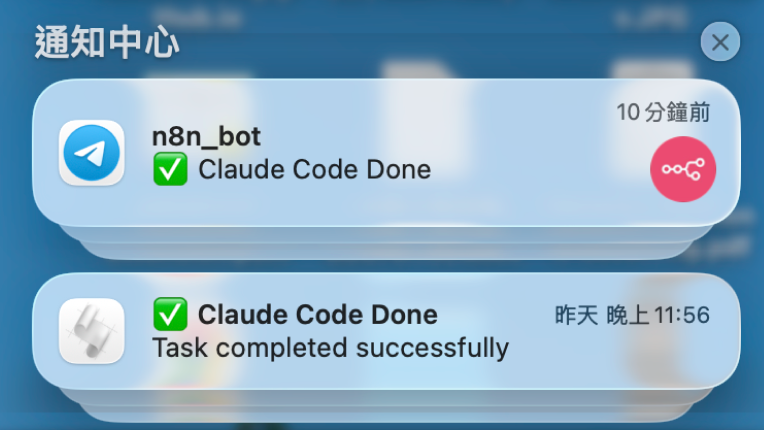
This article covers two notification methods and two setup methods:
| macOS Native Notification | Telegram Push | |
|---|---|---|
| Receive when away from PC | ❌ | ✅ |
| Setup Difficulty | Simple | Requires bot token |
| Suitable Scenarios | General development | Cross-device, remote work |
Introduction to Notification Methods
Method A: macOS Native Notification (osascript)
osascript is a built-in command-line tool in macOS that allows you to execute AppleScript and other automation scripts directly from the terminal.
With just one line of command, you can trigger a system notification:
osascript -e 'display notification "Task completed successfully" with title "✅ Claude Code Done"'No extra installation is needed, macOS natively supports it.
Method B: Telegram Push (curl)
curl is a CLI tool built into macOS that connects to network servers and transfers data without needing a graphical interface.
Suitable for scenarios where you need to leave your computer or want to receive notifications on your phone. Using macOS’s pre-installed curl, you don’t need to install any additional runtime, and can call the Telegram Bot API directly with one line of command:
curl -s -X POST "https://api.telegram.org/bot$TELEGRAM_BOT_TOKEN/sendMessage" \
  -d chat_id="$TELEGRAM_CHAT_ID" \
  -d text="✅ Claude Code Done"
Prerequisites: Setting up Telegram Bot
Before setting up the hook, complete the Telegram prerequisites first.
Step 1: Create a Telegram Bot


Search for @BotFather in Telegram, send /newbot, follow the instructions to create a bot, and get your BOT_TOKEN.
Step 2: Get your Chat ID
Send any message to the bot you just created, then open in your browser:
https://api.telegram.org/bot<YOUR_BOT_TOKEN>/getUpdatesFind the number for "chat": {"id": ...} in the returned JSON, that is your CHAT_ID.
Setup Methods
Claude Code’s hooks feature allows you to automatically run shell commands when specific events occur. We will use the Stop event, which is exactly when Claude Code finishes a task and stops responding.
Method 1: Using the /hooks command (Recommended for beginners)
This is the most intuitive approach and doesn’t require manually editing any configuration files.
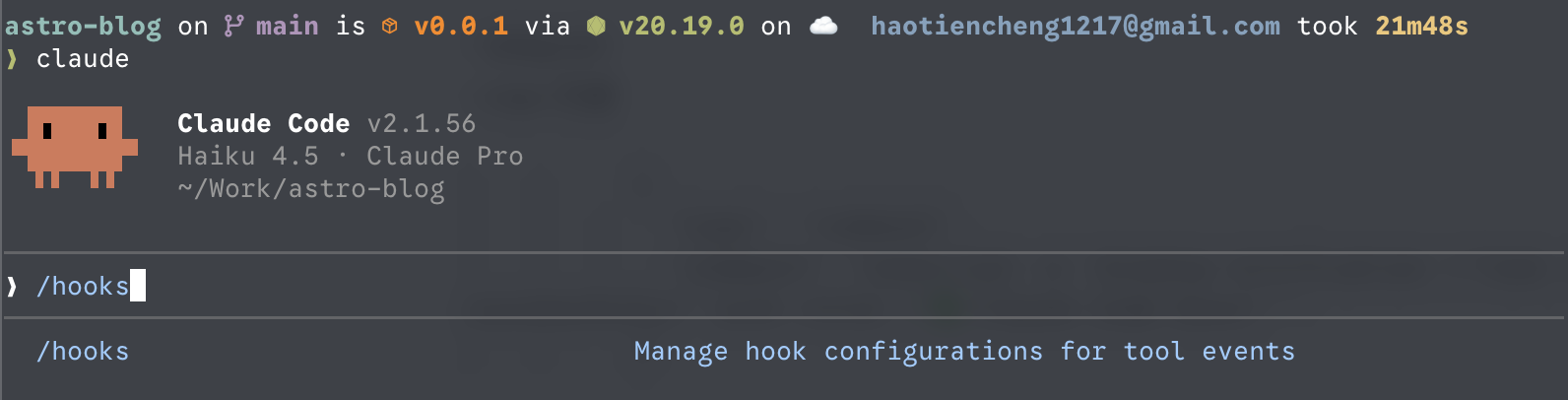
Step 1: Run the /hooks command in your Claude Code session
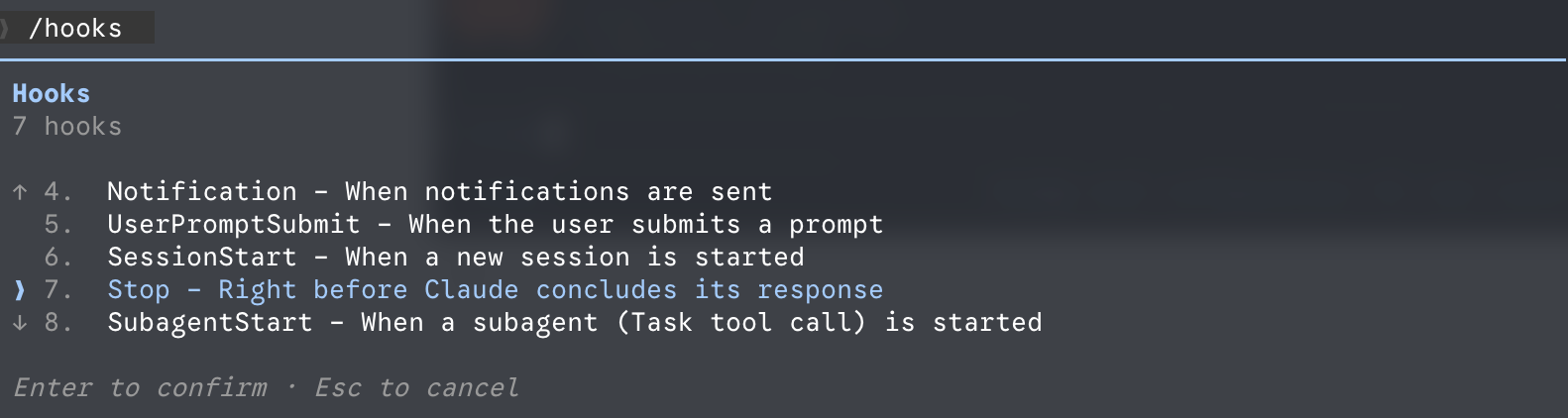
Step 2: Select the Stop event and press Enter to confirm
Step 3: Select + Add new hook...
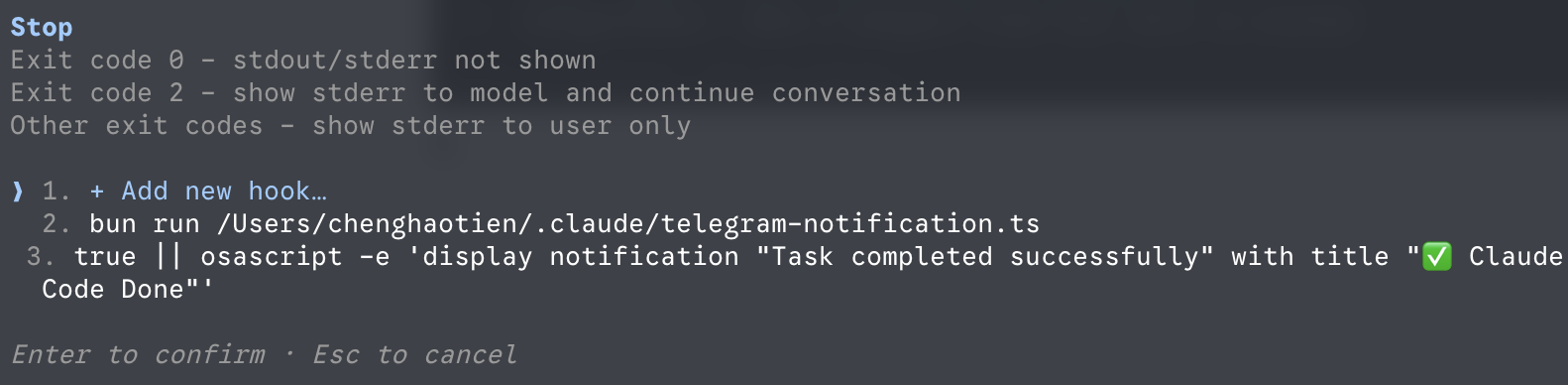
Step 4: Paste your desired notification command into the command input field
macOS Native Notification:
osascript -e 'display notification "Task completed successfully" with title "✅ Claude Code Done"'Or Telegram Push:
curl -s -X POST "https://api.telegram.org/bot$TELEGRAM_BOT_TOKEN/sendMessage" -d chat_id="$TELEGRAM_CHAT_ID" -d text="✅ Claude Code Done"Hint: Remember to replace
$TELEGRAM_BOT_TOKENand$TELEGRAM_CHAT_IDwith the token and ID you noted down earlier.
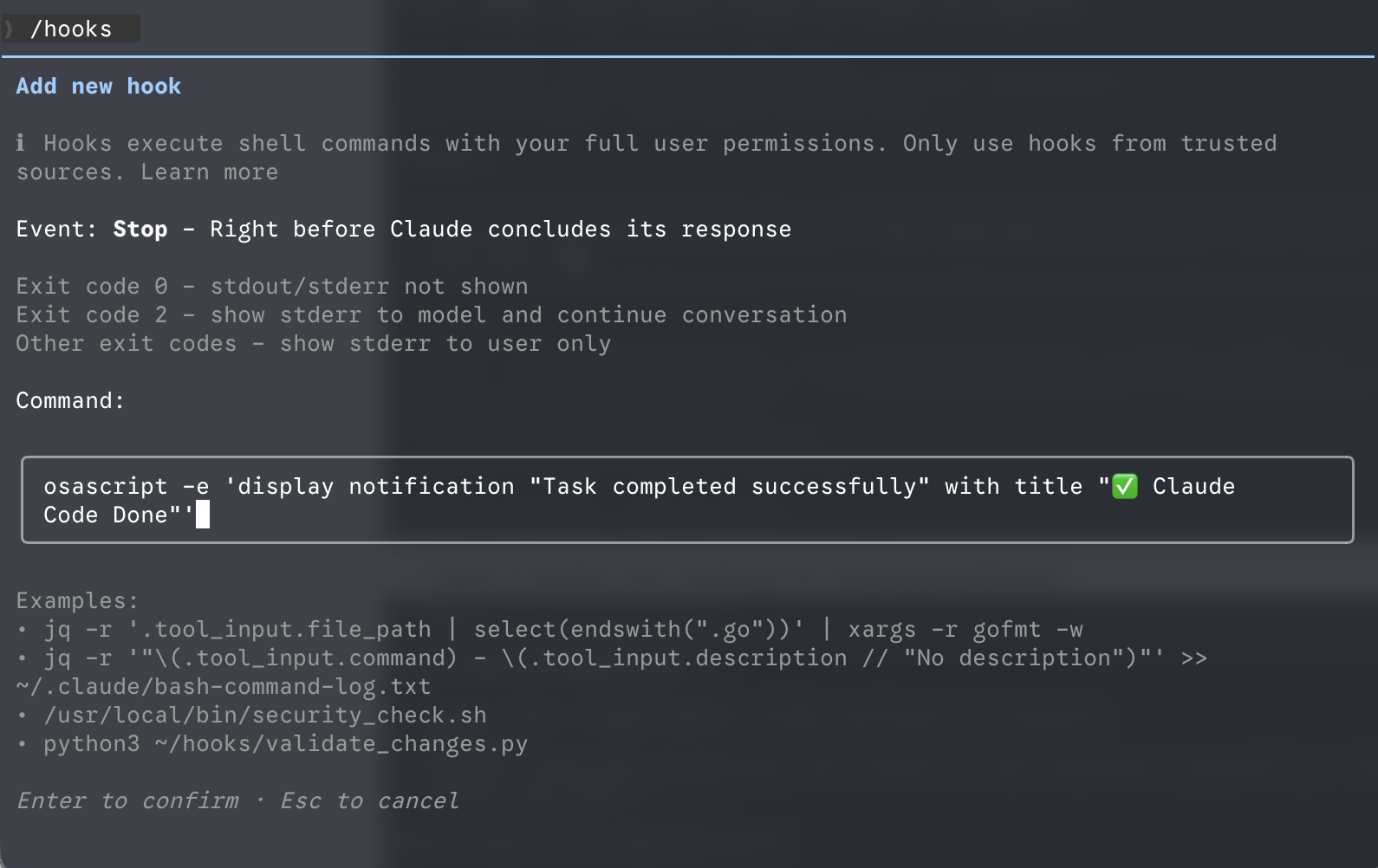
Step 5: Save it to global user settings (recommended, so it applies to all projects)
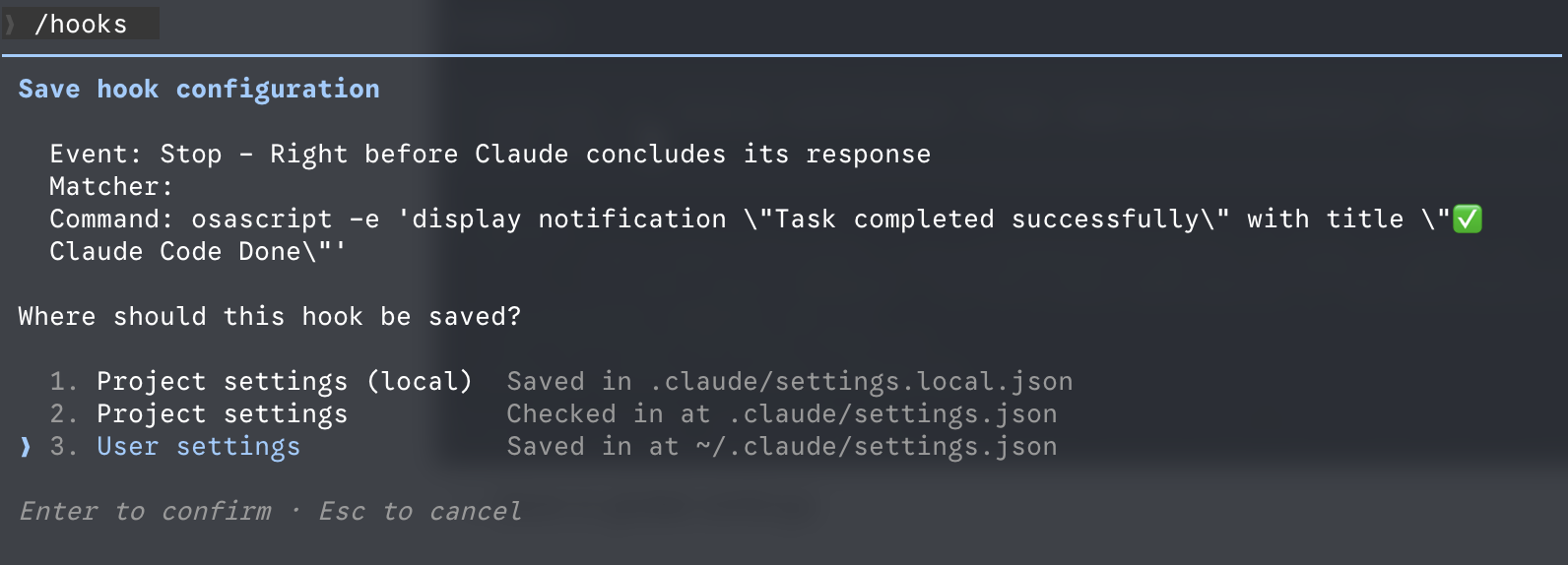
Step 6: Test it out with a simple prompt

Step 7: The system might ask for permission the first time you use osascript, click Allow and it won’t ask again
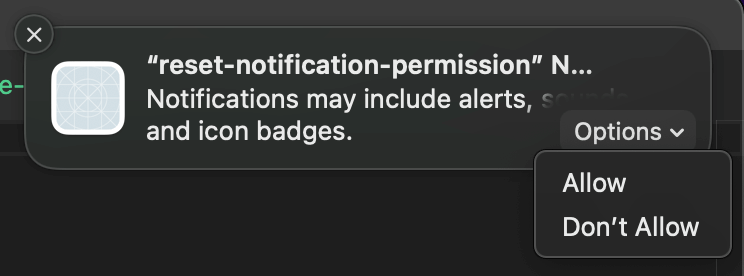
Step 8: Done! The notification will pop up after Claude Code finishes running
Method 2: Edit the .claude JSON config file directly
If you prefer directly editing config files, or want to configure multiple hooks at the same time, this method is more efficient.
Config file locations:
| Scope | Path |
|---|---|
| Global (all projects) | ~/.claude/settings.json |
| Project shared | .claude/settings.json |
| Personal local | .claude/settings.local.json |
You can use this command in the terminal to open the config file:
open ~/.claude/settings.jsonOpen the config file and append the following JSON:
{
  "hooks": {
    "Stop": [
      {
        "hooks": [
          {
            "type": "command",
            "command": "osascript -e 'display notification \"Task completed successfully\" with title \"✅ Claude Code Done\"'"
          },
          {
            "type": "command",
            "command": "curl -s -X POST \"https://api.telegram.org/bot$TELEGRAM_BOT_TOKEN/sendMessage\" -d chat_id=\"$TELEGRAM_CHAT_ID\" -d text=\"✅ Claude Code Done\""
          }
        ]
      }
    ]
  }
}
Hint: Remember to replace
$TELEGRAM_BOT_TOKENand$TELEGRAM_CHAT_IDwith the token and ID you noted down earlier.
This configuration will trigger both notifications at the same time when Claude Code finishes. You can also choose to keep just one of them.
Note: The double quotes in the JSON need to be escaped (
\"). You can just copy the example above directly without handling it manually.
Summary
Once set up, you can confidently go grab a coffee, attend a meeting, or step away from your computer; Claude Code will naturally notify you when it finishes its run.
- Only working at your Mac → Use
osascript, one line of command, no extra setup required. - Need cross-device/remote notifications → Use
curlto call the Telegram API, similarly zero dependencies, built into macOS. - Want both → Simply use Method 2 to edit the JSON and set up both hooks at the same time, all done at once.